Template: Formatting Examples
•

New to Eclaire? This tutorial will get you up and running in just 10 minutes.
This guide is designed for beginners. If you’re already familiar with local-first AI tools, you can skip to our advanced documentation.
Installation (2 minutes)
Download Eclaire for your platform and run the installer. On first launch, Eclaire will:
- Set up your local AI models
- Create your secure data store
- Configure default settings
No account required. No cloud signup. Just install and go. Your data stays completely private on your device.
Import Your First Data (3 minutes)
Let’s import some data to see Eclaire in action:
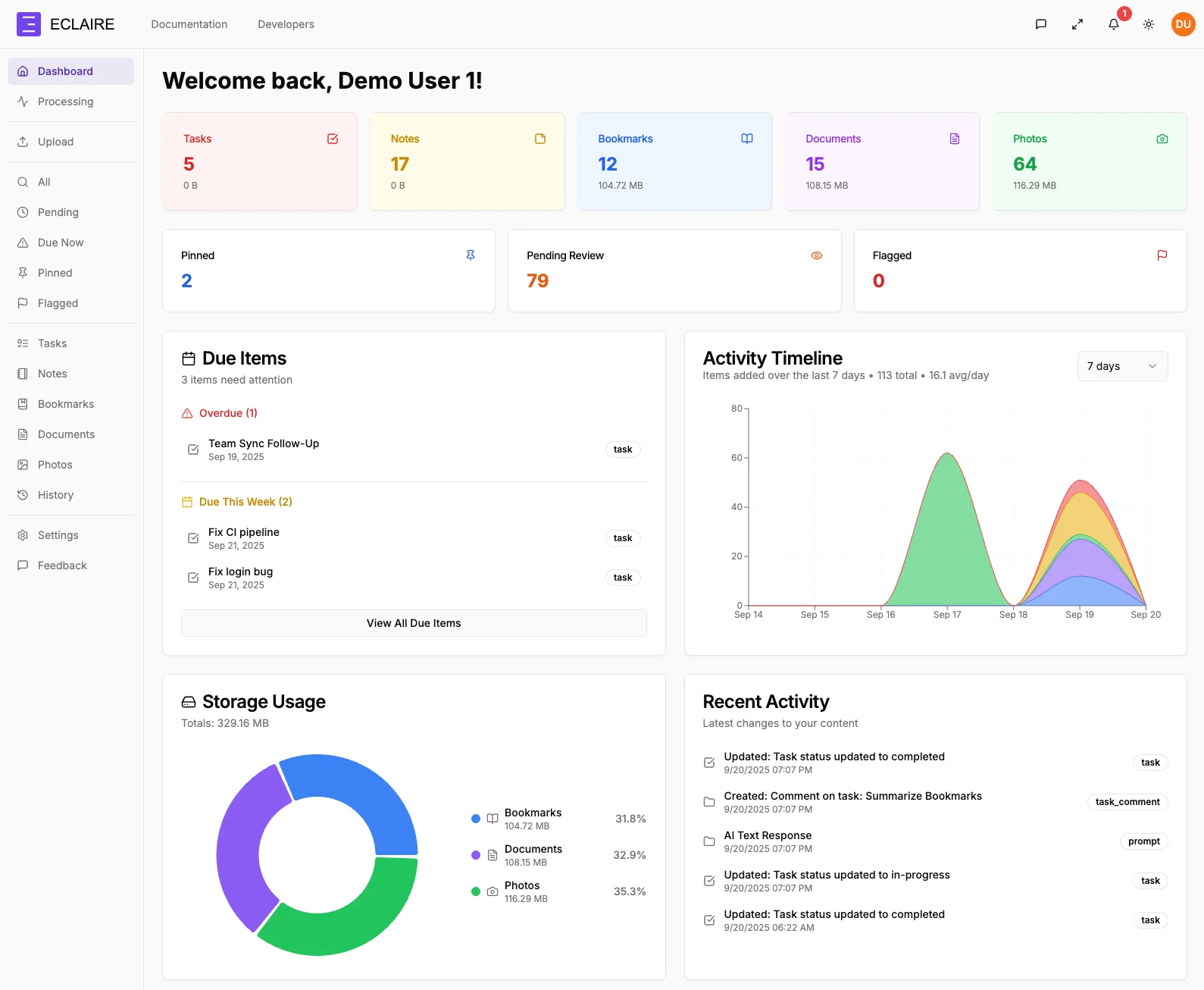
- Add a few tasks - Click the Tasks icon and create some todos
- Import bookmarks - Drag your browser bookmarks file into Eclaire
- Add notes - Create a quick note about a project you’re working on
Eclaire immediately indexes everything locally for instant search.
Supported Import Formats
Here are the file formats we support:
- Documents: PDF, TXT, MD, DOCX
- Bookmarks: HTML (from all major browsers)
- Notes: Markdown, plain text
- Photos: JPG, PNG, HEIC, WebP
When importing very large photo libraries (10,000+ photos), the initial indexing may take a few minutes. Don’t worry - this only happens once!
Try AI-Powered Search (2 minutes)
Press Cmd+K (or Ctrl+K on Windows/Linux) and try searching:
- “tasks due this week”
- “notes about [project name]”
- “bookmarks related to design”
Watch as Eclaire understands your intent and finds exactly what you need.
Advanced Search Examples
You can use natural language queries like:
Show me all photos from last summer vacationFind notes about the marketing projectWhat tasks are overdue?Try combining search filters! For example: “photos of dogs from 2024” or “bookmarks about React tutorials saved this month”
Customize Your Experience (3 minutes)
Open Settings to customize Eclaire to your workflow:
Basic Configuration
-
AI Model Selection
- Choose between different model sizes
- Balance between speed and accuracy
- Download additional models as needed
-
Keyboard Shortcuts
- Customize your quick access keys
- Set up your preferred search hotkey
- Configure command palette shortcuts
-
Privacy Settings
- Control what gets indexed
- Set up exclude folders
- Manage retention policies
Code Example: Custom Configuration
If you want to configure Eclaire programmatically via its API:
// Initialize Eclaire with custom settings
const eclaire = new EclaireClient({
modelSize: 'medium',
indexPath: '~/Documents/Eclaire',
autoIndex: true,
searchDepth: 'deep',
privacy: {
  excludePaths: ['~/Private', '~/.ssh'],
  enableTelemetry: false
}
});

// Start the indexing process
await eclaire.startIndexing();The API is currently in beta. Schema and endpoints may change in future releases. Always check the API documentation for the latest updates.
Configuration File
You can also use a config file (.eclairerc.json) in your home directory:
{
"version": "1.0",
"settings": {
  "model": "eclaire-medium-v2",
  "indexing": {
    "autoStart": true,
    "watchFolders": [
      "~/Documents",
      "~/Pictures"
    ],
    "excludePatterns": [
      "node_modules",
      ".git",
      "*.tmp"
    ]
  },
  "search": {
    "maxResults": 50,
    "fuzzyMatch": true
  }
}
}
Inline Code and Formatting
You can use bold text, italic text, inline code, and even strikethrough.
Here’s how to use inline code: The Cmd+K shortcut opens the search palette instantly.
Numbered Lists
Follow these steps in order:
- First, install Eclaire
- Then, import your data
- Next, try searching
- Finally, customize settings
- Enjoy your privacy-first AI!
Nested Lists
You can also create nested lists:
- Features
- Search
- Natural language
- Fuzzy matching
- Semantic search
- Privacy
- Local-first
- No cloud required
- Encrypted storage
- Search
- Platforms
- macOS (11+)
- Windows (10/11)
- Linux (Ubuntu 20.04+)
Next Steps
You’re all set! Check out our full documentation to learn about:
- Advanced search queries and filters
- Automation and custom workflows
- Photo organization with AI tagging
- Document management and OCR
- Building integrations with the API
Need help? Join our community Discord or check out the FAQ section for common questions.
Welcome to privacy-first AI!